
Electric vehicles (EVs) are changing the way people travel. As more drivers choose EVs for cleaner, quieter journeys, the need for reliable charging stations grows fast. Among the many options, Blink Charging Stations stand out for their wide network, easy-to-use design, and flexible payment methods. But for new EV drivers, using a Blink station can feel confusing at first. With different charging speeds, apps, cards, and cables, it’s easy to miss details that can save time and money.
This article is your complete guide to using a Blink Charging Station. Whether you’re a first-time EV owner or a curious driver planning your first long-distance trip, you’ll learn how to find, start, and finish a charging session with confidence. You’ll also discover practical tips, common mistakes to avoid, and features that set Blink apart from other networks. Let’s make your next charging experience smooth, efficient, and worry-free.
Understanding Blink Charging Stations
Before you plug in your EV, it helps to know what Blink Charging Stations are and how they work. Blink is a leading provider of EV charging solutions in the United States and several other countries. Their network includes thousands of stations at shopping centers, workplaces, apartments, parking lots, and more.
There are two main types of Blink chargers:
- Level 2 Chargers: These use a 240-volt connection (similar to a clothes dryer) and can add about 25 miles of range per hour, depending on your vehicle.
- DC Fast Chargers: These use higher voltage (up to 480 volts) and can charge compatible vehicles from 20% to 80% in 20–40 minutes.
Most public Blink stations are Level 2, but fast chargers are growing in cities and along highways. Your car’s battery size and charger compatibility affect how long it takes to charge.
Why Choose Blink?
- Large network: Over 60,000 charging ports worldwide.
- Flexible payment: Use a Blink account, RFID card, app, or credit card.
- Easy interface: Simple on-screen instructions and helpful app features.
- 24/7 support: Get help any time you need it.
Blink also works with popular EV models like Tesla (with an adapter), Chevrolet Bolt, Nissan Leaf, Ford Mustang Mach-E, and many more.
Finding A Blink Charging Station
Before you charge, you need to find a station nearby. Blink makes this easy with several tools.
Using The Blink Map
The Blink Map is available on their website and mobile app. It shows all active stations, their status (available, in use, out of service), and type (Level 2 or DC Fast).
- Go to the Blink app or website.
- Enter your location or let the app use your phone’s GPS.
- Browse stations, filter by charger type, and see real-time availability.
Third-party Apps
You can also find Blink chargers on apps like PlugShare, ChargePoint, and Google Maps. These apps show user reviews, prices, and photos.
On Your Car’s Navigation
Many modern EVs have built-in navigation that can show Blink stations along your route. Always check the latest status before you go, as some stations may be busy or under maintenance.
Non-obvious Insight 1
Many drivers overlook the reservation feature on the Blink app. At select locations, you can reserve a spot in advance, saving time during busy hours.
Preparing To Charge
Arriving at a charging station is only part of the process. A little preparation can prevent delays or mistakes.
What You Need
- Blink account (optional): Speeds up payment and unlocks discounts.
- Blink RFID card (optional): Tap-and-go convenience.
- Credit or debit card: For pay-as-you-go charging.
- Charging cable: Most Blink stations have cables attached, but a few require your own (mainly at home or private locations).
- Adapter: Tesla drivers need a J1772 adapter for Level 2 Blink chargers.
Parking
Always park so your charging port is close to the Blink charger cable. Some cables are short, and stretching them can damage equipment. Check for signs about parking limits or EV-only rules.
Checking Station Status
Before you get out, check the station screen or app to confirm it’s working and not reserved or out of service. This step saves frustration.
Non-obvious Insight 2
Some public lots require you to start a parking session in addition to charging. Watch for posted signs to avoid fines.
Setting Up Your Blink Account
While you can use most Blink stations without an account, having one offers benefits:
- Lower per-kWh or per-hour rates.
- Access to the Blink app for easy tracking.
- Ability to order an RFID card.
- View charging history and receipts.
How To Sign Up
- Download the Blink Charging app (iOS or Android) or go to their website.
- Click “Sign Up” and enter your email and details.
- Add a payment method (credit or debit card).
- (Optional) Request a physical RFID card by mail.
Managing Your Account
In the app, you can:
- Check your balance and payment history.
- See active and past charging sessions.
- Find stations and get directions.
If you lose your card or need help, customer support can reset your account quickly.
Starting A Charging Session
Charging at a Blink station is simple, but the steps can vary by station type and payment method. Here’s how to get started.
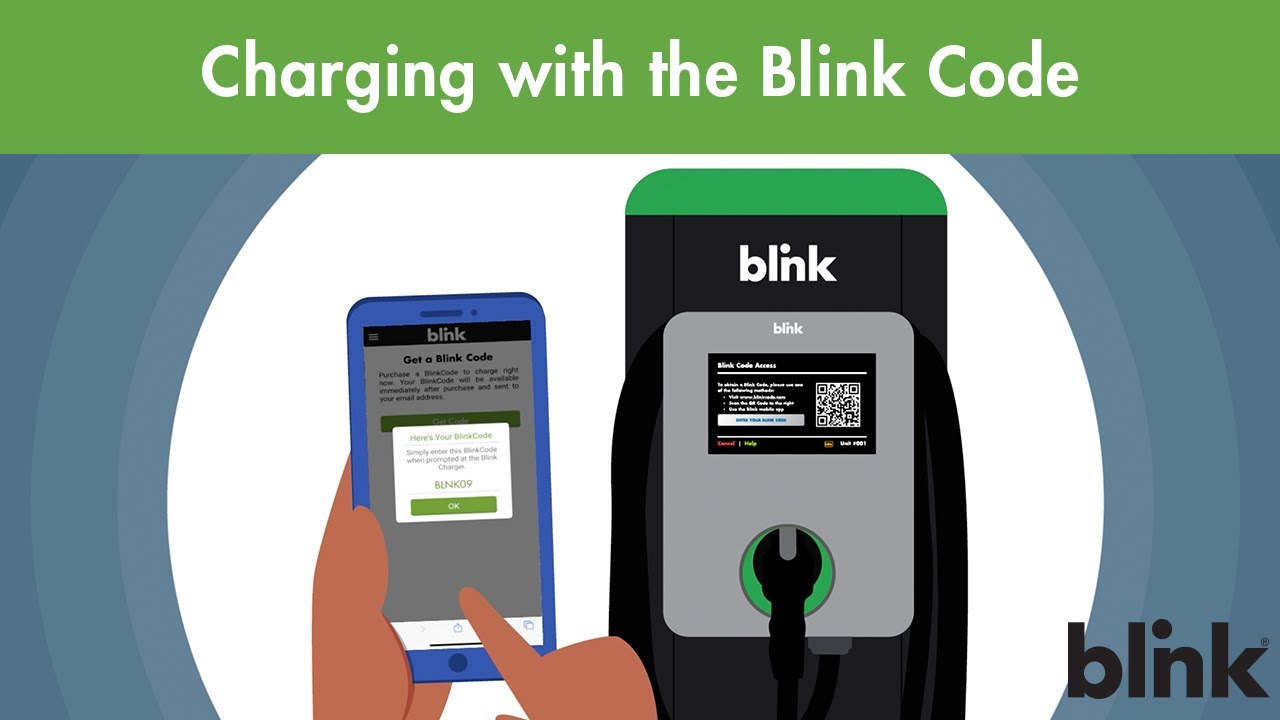
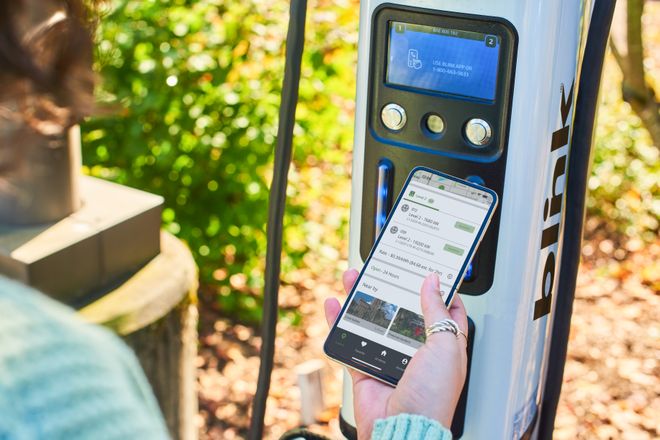
Using The Blink App
- Open the app and log in.
- Scan the station’s QR code or enter the station number.
- Follow on-screen steps to start charging.
- Plug the connector into your car when instructed.
With A Blink Rfid Card
- Tap your card on the reader.
- Wait for the station to recognize your account.
- Plug in your vehicle.
Credit Or Debit Card
- Select “Guest” or “Credit Card” on the screen.
- Insert, tap, or swipe your card as instructed.
- Plug in your car.
Some stations may ask for your phone number or zip code for extra security.
At Dc Fast Chargers
- These may require you to select your connector type (CHAdeMO, CCS, etc.) Before plugging in.
- Some fast chargers have a touch screen with extra steps, like entering your phone number or email for receipts.
Practical Example
Let’s say you’re at a mall with a Blink Level 2 charger:
- Park, check the cable length, and unlock your car’s charging port.
- Open the Blink app, scan the QR code, and follow the instructions.
- Plug in the connector. The station will beep or display “Charging.”
- Go shop and monitor charging on your app.
Monitoring Your Charging Session
While your car charges, you can track progress in several ways.
On The Blink App
- See charge time, energy added (kWh), and estimated cost.
- Get notifications when charging is complete or interrupted.
On The Station Screen
Some Blink chargers display charging time and energy delivered. Others only show basic status.
Inside Your Car
Most EVs show charging speed and estimated completion time on their dashboard or infotainment screen.
Non-obvious Insight 3
You can set up text or email alerts in your Blink app for when your car is done charging, helping you avoid idle fees.
Ending Your Charging Session
When you’re ready to leave, it’s important to end your session correctly.
Steps To Unplug
- Stop charging on the Blink app, RFID card, or station screen.
- Wait for the station to confirm “Session Ended.”
- Unplug the connector from your car.
- Return the cable to its holster.
Never yank the cable or leave it on the ground. Improper handling can damage the charger and may result in fines.
Payment And Receipts
If you used a credit card, the station may print a receipt or send one by email. Blink account users get receipts in the app.
Idle Fees
Some stations charge extra if you stay parked after charging is done. Move your car promptly to avoid extra costs and help other drivers.
Blink Charging Station Costs And Pricing
Knowing what you’ll pay helps you plan your charging stops and avoid surprises.
How Blink Pricing Works
Pricing can be:
- Per kWh: Pay for the energy used (e.g., $0.39 per kWh).
- Per hour: Pay for the time plugged in (e.g., $1.50 per hour).
- Session fee: Flat fee to start charging (e.g., $1.00 per session).
- Idle fee: Extra charge for staying after charging is complete (e.g., $0.10 per minute).
The method depends on local laws and station location. Some states only allow time-based pricing.
Membership Benefits
Blink members often get lower rates and access to promotions or partner locations. Check the app for local rates, as prices can change.
Comparing Blink With Other Networks
Here’s a simple look at how Blink stacks up against two main rivals:
| Network | Level 2 Price (per kWh) | DC Fast Price (per kWh) | Idle Fee |
|---|---|---|---|
| Blink | $0.39–$0.49 | $0.49–$0.69 | $0.10–$0.20/min |
| ChargePoint | $0.35–$0.45 | $0.40–$0.60 | Varies |
| EVgo | $0.30–$0.40 | $0.49–$0.79 | $0.40/min |
Prices are averages and can change by location.
Non-obvious Insight 4
Some workplaces, hotels, or shopping centers offer free Blink charging as a perk. Always check for posted rates before starting your session.
Using Blink Charging Station Features
Blink stations are more than just plugs. They offer features that can make your charging easier and more efficient.
Reservations
At busy sites, use the Blink app’s reservation feature. Reserve a charger ahead of time and get a window when your spot is guaranteed.
Charging History
Track your charging sessions, costs, and energy usage in the app. This is helpful for budgeting or reporting mileage for work.
Multi-language Support
Many Blink stations and the app offer instructions in English and Spanish, making them accessible to more users.
Accessibility
Blink is adding more ADA-compliant stations, with easy-to-reach screens and buttons for people with disabilities.
Technical Support
24/7 phone and email help is available if you have problems with a charger, payment, or your account.
Common Problems And Solutions
Even the best charging networks can have issues. Here’s how to solve the most common problems at Blink stations.
Charger Won’t Start
- Check if the station shows “Available.”
- Try a different payment method (e.g., app instead of credit card).
- Make sure your car is off and in park.
- If using a Tesla, double-check the adapter connection.
Charging Stops Unexpectedly
- Make sure the connector is fully inserted.
- Check your car’s screen for errors.
- Call Blink support for a remote restart.
Payment Issues
- If your card won’t read, try the app or RFID card.
- Some stations only accept US cards; check before traveling abroad.
Cable Too Short
- Park as close as possible to the charger.
- Do not stretch the cable—this can damage equipment.
Station Out Of Service
- Check the Blink app for real-time status.
- Report broken stations through the app or by phone.
Non-obvious Insight 5
If you encounter a broken station, reporting it in the app often results in a free charging credit as a thank you.

Credit: en.wikipedia.org
Safety Tips For Using Blink Charging Stations
Safety is important for both drivers and equipment. Blink stations are designed to be safe, but you should still follow some basic rules.
Before Charging
- Inspect the charger and cable for damage.
- Never use a charger with exposed wires or a broken connector.
- Only use Blink stations in well-lit, public areas at night.
While Charging
- Do not drive away while plugged in.
- Keep the charging area clear of obstacles.
- Supervise children and pets near chargers.
After Charging
- Always return the cable to the holder.
- Do not leave personal items at the station.
Advanced Features And Integrations
As EV technology improves, Blink is adding advanced features to their stations.
Smart Charging
Some Blink stations can communicate with your car or home energy system. They can start charging when electricity is cheapest (off-peak hours) or when solar panels generate extra power.
Fleet And Workplace Solutions
Businesses can manage multiple Blink stations, monitor usage, and set access rules for employees or the public.
App Integrations
Blink’s app can sync with Google Maps, Apple Maps, and even some car apps. This makes it easy to add charging stops to your trip.
| Feature | Blink Charging | Competitors |
|---|---|---|
| Reservation | Yes (select sites) | Rarely |
| Multi-language support | English, Spanish | English only (most) |
| Fleet management | Yes | Yes |
| App navigation | Yes | Yes |
Credit: www.youtube.com
Charging Etiquette And Best Practices
Using public chargers is a community effort. Respect other drivers and help the EV community grow.
Be Considerate
- Move your car when charging is done.
- Do not unplug other cars unless charging is complete.
- Avoid using EV spots if you’re not charging.
Share Information
Use apps like PlugShare to leave reviews, report issues, or share tips about specific Blink stations.
Don’t Block Access
Park only in marked EV spots and keep the area clear for other users.
Environmental Impact Of Using Blink Charging
Every time you use a Blink charger, you help reduce greenhouse gas emissions compared to gas vehicles. Blink stations also support renewable energy in some regions.
- Charging at public stations is 70–80% cleaner than using gasoline, depending on your electricity source.
- Some Blink locations use solar panels or buy green energy to power their chargers.
Switching to EVs and using networks like Blink supports a cleaner, quieter future.
Accessibility For Different Ev Models
Most modern EVs can use Blink Level 2 chargers, but there are some exceptions.
- Tesla: Needs a J1772 adapter (included with most Teslas).
- Older EVs: Some older models may have unique plugs; check your car’s manual.
- Plug-in hybrids: Can use Level 2 chargers for faster charging compared to a regular outlet.
Always check your car’s charging port type before your first visit to a Blink station.
International Use And Expansion
Blink is growing beyond the U. S. and now operates in several countries.
- Europe: Blink has stations in the UK, France, Greece, and more, using local plugs and payment methods.
- South America: Expanding in Chile, Argentina, and other markets.
If you travel abroad, check the Blink app for station compatibility and local support.
For more details on global EV charging networks, visit the Wikipedia page on charging stations.
Credit: blinkcharging.com
Staying Updated With Blink Charging
Technology and prices change quickly. To get the most from Blink:
- Update your app regularly for new features.
- Subscribe to Blink’s newsletter for news and promotions.
- Follow Blink on social media for outage alerts or new station launches.
Frequently Asked Questions
How Do I Find A Blink Charging Station Near Me?
Use the Blink app or website to search for stations by address or GPS. You can also find Blink chargers on Google Maps, PlugShare, and some car navigation systems.
Can I Use A Blink Charger If I Don’t Have An Account?
Yes, you can pay as a guest with a credit or debit card. However, a Blink account offers lower rates and access to more features.
How Long Does It Take To Charge My Car At A Blink Station?
Level 2 chargers add about 25 miles of range per hour. DC Fast chargers can charge most EVs from 20% to 80% in 20–40 minutes, but times vary by car and battery size.
What Should I Do If A Blink Charger Is Broken Or Won’t Start?
Report the issue in the Blink app or call their 24/7 support line. You can also try another payment method or nearby station.
Do Blink Stations Work With All Electric Cars?
Most modern EVs with a J1772 port can use Blink Level 2 chargers. Tesla vehicles need an adapter. Some older cars may need special adapters, so always check your manual.
Using a Blink Charging Station is simple once you understand the steps and features. With this guide, you can charge with confidence, avoid common mistakes, and help other drivers by following best practices. As the world moves toward electric mobility, knowing how to use networks like Blink puts you in the driver’s seat for a cleaner, smarter future.